Microsoft Excel Courses Cape Town & Johannesburg

Apply now for our Microsoft Excel Course

Get started with Excel:

Insert lesson titles in a bulleted list

Features New in Excel

Advanced Formulas

Visualizing Your Data

Course Details

Instructor Led Learning

Duration: 3 Days

Registration Open Now!

Online Learning

Duration: 365 Days

Registration Open Now!

Earning as much as : R158 000 p.a

Microsoft Excel Course overview

Part 1:
In this Introduction to Microsoft Excel training class, students will create and edit basic worksheets and workbooks. This course is designed for students who want to gain the necessary skills to create, edit, format, and print basic Microsoft Excel worksheets.

Part 2:
This Intermediate Microsoft Excel training class is meant for students who want to advance their skill set by learning to work with advanced formulas, lists, and illustrations. Students will also work with charts and advanced formatting including styles

Part 3:
This Advanced Microsoft Excel training class is designed for students to gain the skills necessary to use pivot tables, audit and analyze worksheet data, utilize data tools, collaborate with others, and create and manage macros.
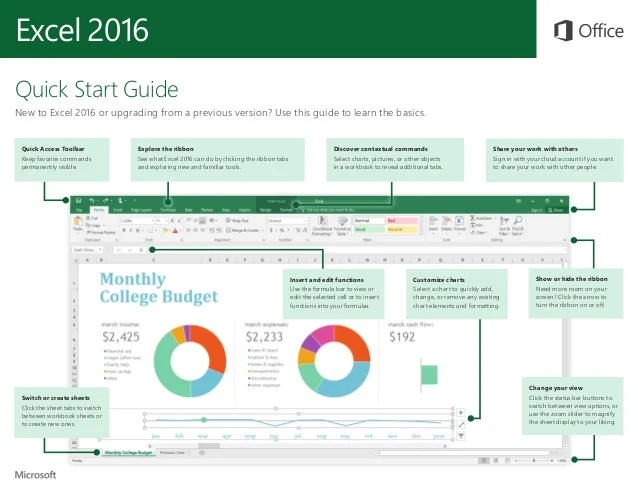
office-2016-quick-start-guide-excel-1-638

Is this course for you?

Microsoft Excel is the standard spreadsheet application for both business and personal use. Microsoft Excel features graphing tools, calculations, pivot tables and more. Whether you’re new or already an advanced user, MasterGrade IT’s Excel courses for Microsoft Excel will teach you all you need to know – from basic to advanced features – to become an excel power user.

From formatting to design, this short Excel training course will allow you to create a range of documents for use in both the business and personal realm.
dat206x-about_page_image-318x210

Available Microsoft Excel Exams and Certification Paths

Start off with Microsoft Excel exams:

Other Microsoft Office Course:

Job Opportunities

Job Title:Office Administrator

Responsibilities: 
The Microsoft Excel will you build a spreedsheets that helps your business. You will be responsible for the working on spreedsheets for business equipment, such as status and business maintains. Responsibility for staff login.

3 Steps to Master Microsoft Excel

Step 1

Take A Course

Step 2

Write An Exam

Step 3

Get Certified

What you will learn

Microsoft Excel Training Course

Microsoft Excel Part 1: Introduction to Microsoft Excel
Microsoft Excel Part 2: Intermediate Microsoft Excel
Microsoft Excel Part 3: Advanced Microsoft Excel
Microsoft Excel Part 4: Excel on Steroids

Full course outline

Module 1: Microsoft Office Basics

  • Logging in to Microsoft 365
  • Installing Applications
  • Creating New Files and AutoSaving
  • Protected View
  • File Sharing
  • File Collaboration
  • Version History
  • Getting Updates
  • Mac Versions

Module 2:Creating a Microsoft Excel Workbook

  • Starting Microsoft Excel
  • Saving a Workbook
  • The Status Bar
  • Adding and Deleting Worksheets
  • Copying and Moving Worksheets
  • View Options for the Worksheet
  • Closing a Workbook
  • Creating a Microsoft Excel Workbook (Exercise)

Module 3:The Ribbon

  • Tabs
  • Groups and Commands
  • Microsoft Search Box

Module 4:The Backstage View (The File Menu)

  • Introduction to the Backstage View
  • Opening a Workbook
  • Open a Workbook (Exercise)
  • New Workbooks and Excel Templates
  • Select, Open, and Save a Template Agenda (Exercise)
  • Printing Worksheets
  • Print a Worksheet (Exercise)
  • Personalizing Microsoft Office

Module 5:The Quick Access Toolbar

  • Getting Started
  • Adding Common Commands
  • Adding Additional Commands with the Customize Dialog
  • Adding Ribbon Commands or Groups
  • Customize the Quick Access Toolbar (Exercise)

Module 6:Entering Data in Microsoft Excel Worksheets

  • Entering Text
  • Inserting and Deleting Cells
  • Inserting Hyperlinks
  • Inserting WordArt
  • Using AutoComplete
  • Entering Text and Using AutoComplete (Exercise)
  • Entering Numbers and Dates
  • Entering Numbers and Dates (Exercise)

Module 7:Formatting Microsoft Excel Worksheets

  • Selecting Ranges of Cells
  • Hiding Worksheets
  • Adding Color to Worksheet Tabs
  • Adding Themes to Workbooks
  • Customize a Workbook Using Tab Colors and Themes (Exercise)
  • Adding a Watermark
  • The Font Group
  • Working with Font Group Commands (Exercise)
  • The Alignment Group
  • Working with Alignment Group Commands (Exercise)
  • The Number Group
  • Working with Number Group Commands (Exercise)

Module 8:Editing Worksheets

  • Find
  • Find and Replace
  • Using Find and Replace (Exercise)
  • Using the Clipboard
  • Using the Clipboard (Exercise)
  • Moving Columns / Rows

Module 9:Working with Rows and Columns

  • Inserting and Deleting Rows, Columns, and Cells
  • Transposing Rows and Columns
  • Row Height and Column Width
  • Hiding and Unhiding Rows and Columns
  • Freezing Panes
  • Working with Rows and Columns (Exercise)

Module 10:Using Formulas in Microsoft Excel

  • Math Operators and the Order of Operations
  • Entering Formulas
  • AutoSum (and Other Common Auto-Formulas)
  • Copying Formulas
  • Relative, Absolute, and Mixed Cell References
  • Working with Formulas (Exercise)

Module 11:Finalizing Microsoft Excel Worksheets

  • Setting Margins
  • Setting Page Orientation
  • Setting the Print Area
  • Print Scaling (Fit Sheet on One Page)
  • Repeating Headings
  • Headers and Footers
  • Preparing to Print (Exercise)

Module 1: Common Functions

  • Using Named Ranges in Formulas
  • Using Named Ranges in Formulas (exercise)
  • Using Formulas That Span Multiple Worksheets
  • Entering a Formula Using Data in Multiple Worksheets (exercise)
  • Functions: IF and IFS
  • Using the IF Function (exercise)
  • Functions: AND and OR
  • Functions: NOT
  • Functions: SWITCH
  • Functions: COUNTIF, AVERAGEIF, and SUMIF
  • Functions: PMT and NPER
  • Using the PMT Function (exercise)
  • Functions: TEXTJOIN and CONCAT
  • Using the TEXTJOIN Function (exercise)
  • Text Functions
  • Creating Ordinal Numbers (exercise)
  • Date and Time Functions
  • Using Date Functions (exercise)

Module 2: Working with Lists

  • What is a List of Data?
  • Removing Duplicates from a List
  • Removing Duplicates from a List (exercise)
  • Sorting Data in a List
  • Sorting Data in a List (exercise)
  • Filtering Data in a List
  • Filtering Data in a List (exercise)
  • Adding Subtotals to a List
  • Adding Subtotals to a List (exercise)

Module 3: Visualizing Your Data

  • Chart Basics
  • Tools for Editing Charts
  • Using the Chart Design Tool Tab (exercise)
  • The Format Tool Tab
  • Using the Three Chart Buttons
  • The Format Task Pane
  • Useful Charts
  • Line and Area Charts
  • Hierarchy Charts
  • Statistic Charts
  • Other Charts
  • Combo Charts
  • Using Recommended Charts
  • Sparklines
  • Inserting and Customizing Sparklines (exercise)
  • Add and Format Objects
  • Working with Shapes
  • Working with Icons
  • Working with SmartArt
  • Using the Quick Analysis Tool

Module 4: Working with Tables

  • Format Data as a Table
  • Table Design Tool Tab
  • Formatting Individual Cells
  • Selecting Table Rows and Columns
  • Creating and Modifying a Table in Excel (exercise)
  • Structured References
  • Convert a Table to a Range

Module 5: Advanced Formatting

  • Cell Styles
  • Working with Cell Styles (exercise)
  • Conditional Formatting
  • Conditional Formatting: Highlight Cells Rules
  • Conditional Formatting: Top/Bottom Rules
  • Conditional Formatting: Data Bars, Color Scales, and Icon Sets
  • Conditional Formatting: Create a New Rule
  • Removing Conditional Formatting
  • Using Conditional Formatting (exercise)

Module 1: Using Pivot Tables

  • How PivotTables Work
  • Timeline Filters
  • Inserting Slicers
  • Grouping Data
  • Calculated Fields
  • PivotCharts
  • Working with PivotTables (Exercise)

Module 2: Advanced Functions

  • Function Syntax
  • ROWS, COLUMNS, INDEX, and XMATCH
  • Arrays and Array Formulas
  • Getting Unique Values (Exercise)
  • SORT, FILTER, and SORTBY
  • Lookup Functions
  • Using the XLOOKUP Function (Exercise)
  • The LEFT Function
  • The TRANSPOSE Function

Module 3: Auditing Workbooks

  • Inspecting a Workbook
  • Tracing Precedents and Dependents
  • Tracing Precedents and Dependents Practice (Exercise)
  • Watch Window
  • Evaluating Formulas
  • Error Checking

Module 4: Data Tools

  • Importing Data from online source
  • Converting Text to Columns</span
  • Converting Text to Columns (Exercise)
  • Importing Files
  • Importing Text Files (Exercise)
  • Linking to External Data
  • Controlling Calculation Options
  • Data Validation
  • Using Data Validation (Exercise)
  • Consolidating Data
  • Consolidating Data (Exercise)
  • What-If Analysis
  • Using Goal Seek (Exercise)

Module 5: Recording and Using Macros

  • Recording Macros
  • Recording a Macro (Exercise)
  • Running Macros
  • Editing Macros
  • Adding Macros to the Quick Access Toolbar
  • Adding a Macro to the Quick Access Toolbar (Exercise)

Working with Others

  • Comments and Notes
  • Protecting Worksheets and Workbooks
  • Password Protecting a Workbook (Exercise)
  • Marking a Workbook as Final
  • Other Sharing Concerns

Module 1: Manipulating data using statistical and lookup functions

  • Forecast GDP using statistical functions
  • Evaluate sales data using statistical functions
  • Analyse stock data using statistical functions
  • Mine data using the lookup and reference functions

Module 2: Analysing data using data analysis tools

  • Analyse sales data using descriptive statistics
  • Analyse time series data using exponential smoothing
  • Analyse data using regression
  • Identify the beta value of a security
  • Analyse sector data using correlation and covariance matrices
  • Optimize a stock portfolio using solver

Module 3: Working with data using financial functions</strong

  • Develop an investment schedule using financial functions
  • Make investment decisions using financial functions
  • Analyse sales data using math functions
  • Aggregate GDP data using math functions

Module 4: Examining data using math functions

  • Analyse sales data using math functions
  • Calculate stock returns using math functions
  • Aggregate gdp data using math functions

Module 5: Manipulating data using text and information functions

  • Manipulate data using text functions
  • Validate data using information functions

Module 6: Working with templates and charts

  • Create advanced templates
  • Create advanced charts

Module 7: Managing data in workbooks

  • Retrieve and paste data
  • Clean data in workbooks

Contact Us

Please fill in the form below

We can also assist you in French

    Get in touch

    Call us on 087 726 8817 (Mon-Fri 08:00am to 17:00pm) or complete the contact form:


    It does not matter where you are located MasterGrade IT has the perfect solution for you.

    Cape Town Address:
    2nd Floor
    Boland Bank Building
    18 Lower-Burg Street
    Cape Town, 8001
    Johannesburg Address:
    18 Davies Road
    Bryanston Sandton
    2191

    Phone: +27 21 4193213

    Email:info@mgit.co.za

    Official Website: www.it-course-capetown.co.za

    This page is related to: Excel courses Cape Town, Microsoft Excel courses in Cape Town